Minecraft Online: How to Play With Friends, Multiplayer Options & Safety Guide
Getting your first invite from a friend to hop into their Minecraft world is exciting right up until the menus start throwing errors. Before that though, a lot of parents ask a more basic question: how old do you have to be to play Minecraft, and is it safe once other players enter the mix.
Quick Answer: Minecraft carries a PEGI 7 and ESRB Everyone 10 plus rating, so there’s no hard age gate, though retailers treat these as guidance rather than enforcement. Appropriateness depends far more on which mode you choose and whether online multiplayer with strangers is enabled than on a number. A well supervised single player or private multiplayer setup can work fine for a young child, while open servers introduce real risks worth understanding first.
What Is Minecraft Online?
Playing online means connecting your session to another player’s world over the internet rather than sharing a couch or console. That connection can run through a private invite, a subscription-based Realm, or a public dedicated server. One device or server hosts the world file, and every connected player’s actions sync back in real time, latency typically stays under 100 milliseconds on a healthy connection, low enough that building and combat feel responsive.
Java Edition multiplayer leans toward community run dedicated servers with custom plugins, while Bedrock Edition (Xbox, PlayStation, mobile, and Windows) leans on Realms, Xbox Live, and simple friend invites. You need a valid copy of Minecraft, an active internet connection, and in nearly every modern case a Microsoft account, since Mojang folded account management into Xbox Live infrastructure in 2021.
How to Play Minecraft Online With Friends
- Sign in with a Microsoft account before doing anything else. On PlayStation, link through PlayStation Network first, then connect to Microsoft.
- Confirm your edition, Java or Bedrock, since your friend needs the matching edition or a cross-play bridge.
- Add or invite friends through your Microsoft or Xbox account, then send a direct invite from the pause menu.
- Toggle multiplayer on before loading the world, not after; this trips up more new players than any other setting.
- Join your friend’s world by accepting the invite or entering their Realm code.
Xbox, PlayStation 4/5, Windows, mobile, and Switch all support Bedrock cross-play, while Java stays largely confined to PC.
What Multiplayer Options Are Available?
Private world hosting: one player hosts directly from their device, friends join via direct invite, no ongoing cost.
Minecraft Realms: Mojang’s official hosted subscription, roughly $3.99 to $7.99 monthly, keeping a world online continuously even when the host is offline. Running a Realm for a family of four, the biggest advantage wasn’t convenience; it was consistency: the world never resets or needs manual restarting.
Community and dedicated servers: third party hosted, often large public communities, and the primary source of stranger interaction that makes parents nervous, since anyone with the address can typically join.
LAN (Local Area Network): devices on the same Wi Fi connect without the open internet, a solid low risk option for siblings in the same house.
Split-screen: PlayStation and Xbox support 2 to 4 players sharing one TV, entirely offline if desired.
Cross platform Bedrock play: a child on tablet, a parent on Xbox, and a cousin on Windows can share one world simultaneously, genuinely rare among sandbox titles.
Can Java and Bedrock Players Play Together?
Not directly. Java and Bedrock run on different codebases that Mojang has never merged. Every Bedrock platform, Xbox, PlayStation, Switch, Windows Bedrock, mobile, plays together natively; Java players are limited to other Java players unless a bridge is used. Third party software like Geyser lets Java clients connect to Bedrock servers by translating protocol differences, though the server operator must install and maintain it, and even then some Java exclusive mods or blocks may not render correctly on Bedrock. If your child’s friend group already owns a specific edition, matching it saves real headaches, buying Java for a PC household when every friend plays Bedrock on console is the most common regret parents report.
Currency, Marketplace & In Game Purchases
Minecoins are Bedrock’s virtual currency, spent exclusively in the Minecraft Marketplace on skins, texture packs, worlds, and add ons, similar conceptually to the PlayStation Store. All Marketplace content is purely cosmetic or structural, none of it grants competitive advantage in Survival or PvP. Minecoins are bought with real money, and every platform lets account holders set a monthly spending limit tied to the child account through Family Management. Purchases tied to a Microsoft account carry across every Bedrock device signed into that account.
How Safe Is Minecraft Online?
Open public servers can expose kids to unmoderated text chat and occasionally inappropriate usernames or content. Private worlds and Realms only include people the account holder explicitly invites. Bedrock supports in game text chat and, on PlayStation, party voice chat, both disable able entirely through privacy settings.
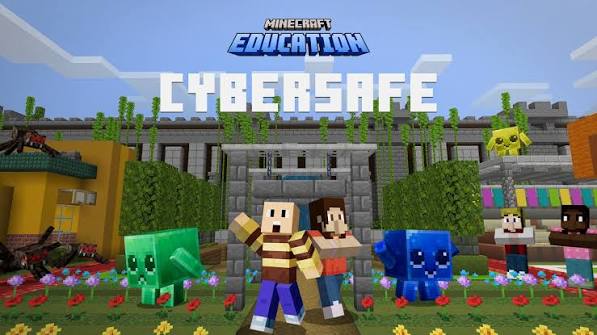
Microsoft’s child account settings let a parent restrict who can message the child, who sees their online status, and whether multiplayer join requests are allowed at all. Every modern build includes in game blocking and reporting tools, and Mojang’s moderation team does act on reports, though response time varies by platform. Setting multiplayer visibility to “friends only” is the single most effective safety setting available, taking under a minute to configure.
Is Minecraft appropriate for 5-year-olds? Generally, a 5-year-old does fine in Creative mode on a private, offline, or friends-only world with an adult nearby, but Survival’s hostile mobs and Hardcore’s permanent death can genuinely overwhelm a child that young; mode choice matters more than age alone.
Setting Up Family Controls
From account.microsoft.com, a parent adds the child as a family member, applying age based content and communication defaults across every Xbox and Windows service including Minecraft. Within Family Management, toggling “Ask a parent” for multiplayer requires explicit approval before joining any new session, and the same dashboard sets purchase approval or a hard monthly spending limit.
PlayStation Family settings work similarly for communication, spending, and PlayStation Plus access. Both ecosystems offer age aligned privacy presets, though manually reviewing each setting is worth the extra ten minutes. Revisit these periodically, a setting right at age 7 often needs loosening by 10 or 11.
Troubleshooting Common Problems
Can’t join a friend’s world? Usually a mismatched edition or multiplayer not toggled on before loading.
Multiplayer unavailable? Confirm your Microsoft account is signed in, your connection is active, and your online subscription (Xbox Live Gold, Game Pass Ultimate, or PlayStation Plus) is current.
Sign in errors? Sign out completely, restart the app, and sign back in, this resolves most authentication issues per Mojang’s own documentation.
Connection failures? Restart your router, check for platform outages, and confirm your console’s NAT type.
Friends can’t see your world? Check your world’s multiplayer visibility and your account’s “who can join me” privacy setting.
Compatibility issues? Confirm both players are on the same major game version, since Bedrock occasionally requires updates that block older clients.
FAQs
Do I need Xbox Live Gold to play Minecraft online?
On console, yes, an active online subscription (Xbox Live Gold, Game Pass Ultimate, or PlayStation Plus) is required for multiplayer.
Can I play Minecraft online for free?
The game requires a one-time purchase, and direct invites or LAN multiplayer need no subscription; Realms is the optional paid hosting tier.
Is a Microsoft account required?
Yes, in nearly every modern case, since Mojang folded account management into Xbox Live infrastructure in 2021.
Can my child play with strangers accidentally?
Only if multiplayer visibility is set beyond “friends only” or a public server address is shared, setting visibility to friends only prevents this.
What’s the safest way to start a child on multiplayer?
A private world limited to known family or friends, ideally in Creative mode, before ever touching a public server.
Conclusion
Minecraft online rewards a few minutes of setup with years of stable multiplayer fun, whether that’s siblings splitting a screen or a family Realm running through school breaks. Start with a private or friends-only world, confirm your edition matches whoever you’re playing with, and layer in family controls before your child touches public chat. Get those basics right once, and the rest of Minecraft online tends to just work.
Recommended Articles
How Do You Jump in Minecraft? Distance, Height & Movement Guide
Roblox Simulators: 7 Best Life Sim and Roleplay Worlds to Try