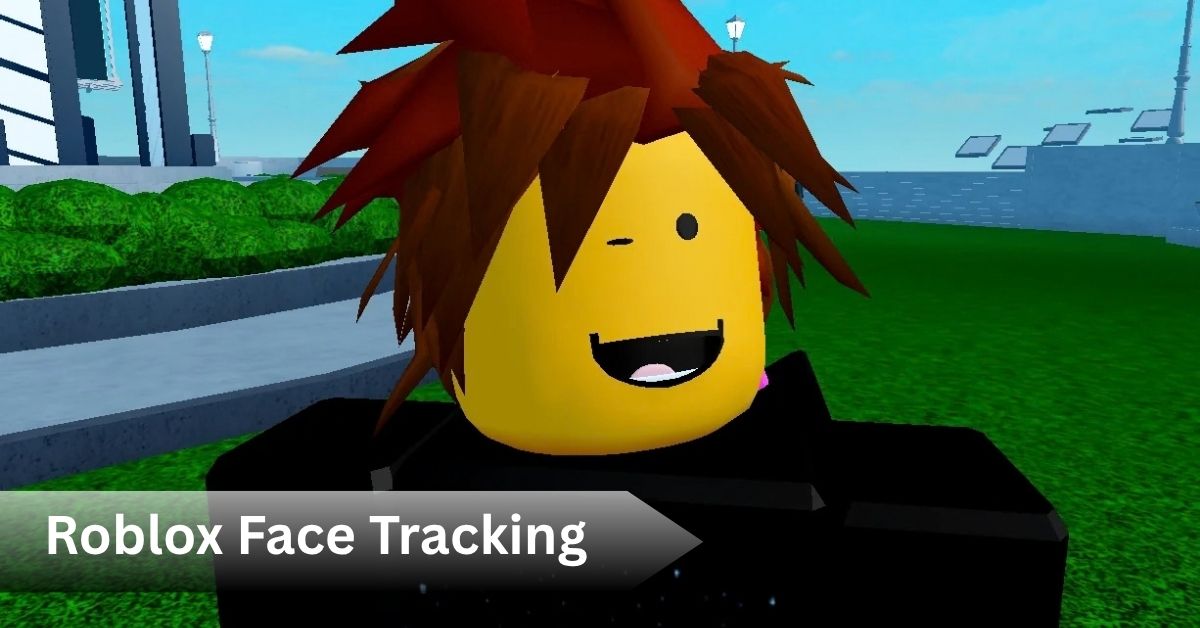
Roblox Face Tracking: How to Set Up Your Animated Avatar
You’ve probably seen another player’s avatar smiling, raising an eyebrow, or turning its head to match their real movements, and wondered how they pulled that off. That’s Roblox face tracking, and once you know where the setting lives, turning it on takes less than two minutes.
Quick Answer: Roblox face tracking uses your device’s front-facing camera to read your facial expressions and head movement, then mirrors them onto a compatible avatar head in real time. You’ll find the toggle inside Settings under Privacy or Communication, and you need to grant camera permission before it works in supported experiences.
This guide covers what the feature actually does, what your device needs to support it, how to configure your avatar, and what to do when the animation just won’t cooperate.
What Is Face Tracking in Roblox?
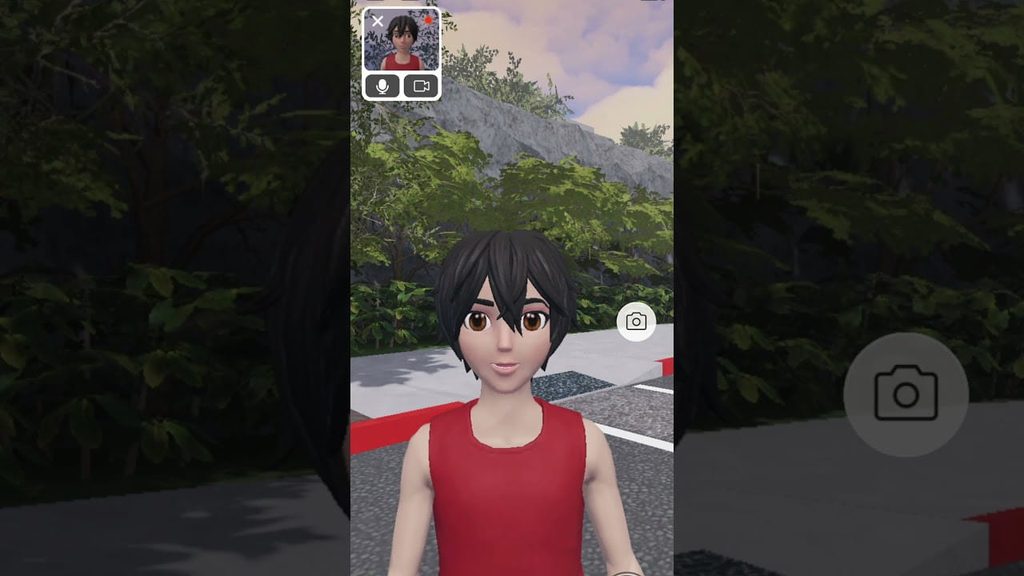
Face tracking sounds complicated until you see it work once, and then it’s obvious. Roblox reads input from your webcam or front facing camera and translates your real facial movements into avatar animation, so when you smile, your avatar smiles back at whoever you’re playing with.
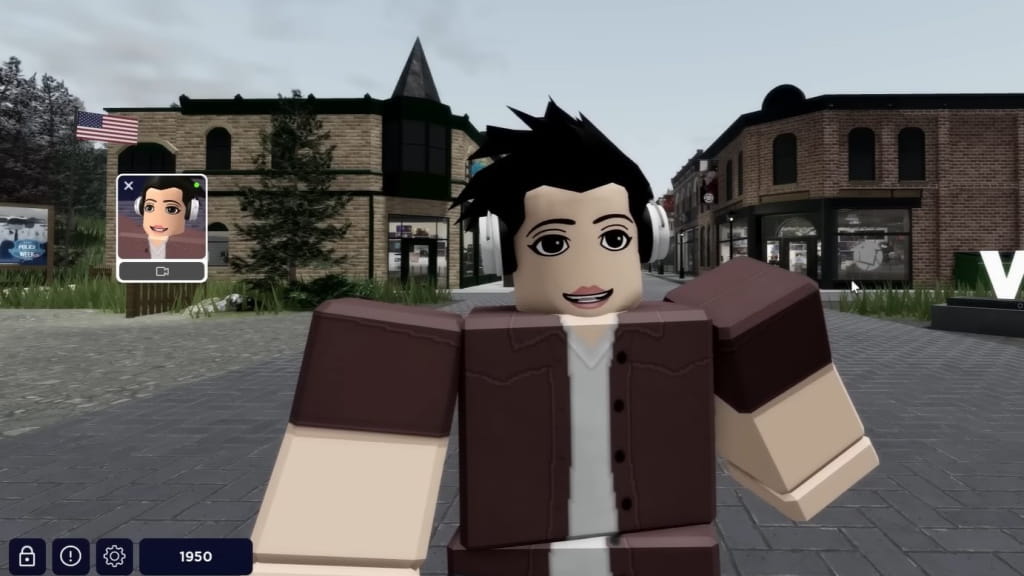
Roblox’s own camera based system converts head tilts, eyebrow raises, and mouth movements into avatar reactions without any extra hardware beyond a standard camera. That’s a meaningful distinction from older facial animation systems in other platforms, which often required dedicated depth sensors or specialized VR headsets. You don’t need one here. A built in laptop webcam or a decent phone camera does the job.
Face tracking and general facial animation aren’t identical terms, though people use them interchangeably. Facial animation is the broader avatar capability, meaning your avatar head is built to display expressions at all. Face tracking is the live input method that drives those expressions using your actual camera feed. An avatar can have facial animation capabilities without face tracking ever being turned on, which trips up a lot of new users troubleshooting the wrong setting.
As for devices, support currently leans toward PC and mobile with a working front facing camera. Desktop users need a functioning webcam, whether built in or standalone, and mobile users need their device’s front camera enabled and accessible to the Roblox app.
What You Need Before Setting Up Face Tracking
Before touching any settings, a few boxes need checking, and skipping them is the most common reason people think the feature is broken when it’s really just unconfigured.
You need a device with a functioning camera. That’s non negotiable, since without camera access there’s nothing for Roblox to read. Beyond that, you’ll want an updated Roblox app, since older client versions sometimes lack the newer avatar animation toggle entirely.
Your account also matters more than most guides mention. Roblox ties camera enabled experiences to age verified accounts in many cases, so if you haven’t gone through Verify My Age in your account settings, you may find the option missing or greyed out. This is one detail competing articles frequently skip, and it’s usually the actual reason someone can’t locate the setting at all.
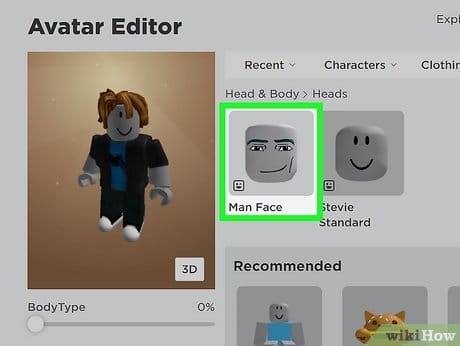
Your avatar needs a compatible head too. Not every classic avatar head supports facial animation, so if you’re running an older or heavily customized look, you may need to swap to a head purchased or equipped through the Marketplace that explicitly lists facial animation support.
Worth saying honestly: using your camera for any app carries a privacy tradeoff. Roblox processes the facial data locally for animation purposes rather than storing raw video, but if you’re not comfortable granting camera access at all, this feature simply isn’t for you, and that’s a reasonable call to make.
How to Enable Face Tracking on Roblox
Once your account and avatar are ready, the actual toggle is buried a little deeper than you’d expect.
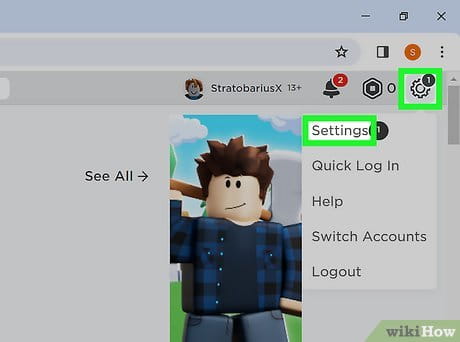
Open Roblox and head into Settings, then look under Privacy or Communication depending on your app version, since Roblox has shuffled this menu location across updates. You’re looking for a line that reads something close to “Use camera to animate your avatar with your movement.”
Tap or click to allow camera access when the permission prompt appears. Skipping this step is the single most common setup mistake, since your operating system also needs to grant Roblox camera permission separately from the in app toggle. On iPhone, that means checking Settings, then Roblox, then confirming Camera is switched on at the system level too.
Enable the facial animation toggle itself, then join any camera-enabled experience to test it. Look at your character preview or a mirror surface in game, tilt your head, and confirm the avatar responds within a second or so of delay.
How to Set Up Face Tracking for Your Roblox Avatar
Getting the toggle on is only half the job. Making it look convincing takes a little more care.
Choose an avatar head built for facial animation. If your current head doesn’t support it, browse the Marketplace filtered by compatible heads, since Roblox labels these clearly in the item description now. Swap it into your Head and Body avatar customization screen and save the change.
Turn on facial movements from the same settings panel, then position your camera at roughly eye level rather than pointed down at your keyboard. In my experience testing this across a laptop webcam and a phone front camera, eye level positioning cut down on misread expressions dramatically compared to a low angle camera that mostly caught the underside of my chin.
Test a range of expressions once it’s running: smiling, raising eyebrows, turning your head side to side. Natural, unhurried movements track more reliably than fast or exaggerated ones, since the system needs a moment to register the change.
How to Use Face Tracking in Roblox Games
Not every Roblox experience supports this, and that catches a lot of people off guard the first time their avatar just sits there expressionless.
Camera enabled experiences typically flag this in their description or loading screen, and developers have to specifically build support for it rather than getting it automatically. If you join a game and nothing happens despite your settings being correct, the experience itself likely just doesn’t include facial animation support yet.
Other players in a supporting experience can see your tracked expressions and head movement in real time, which is part of what makes social hangout style games feel more personal than they used to. It’s a genuinely different social dynamic compared to older Roblox interactions that relied purely on text chat or emotes.
How to Fix Roblox Face Tracking Not Working
When it breaks, it’s almost always one of a short list of causes rather than something mysterious.
Camera permissions blocked at the device level is the top offender, so check both Roblox’s in app setting and your phone or computer’s system camera permissions. Poor lighting comes in second, since dim rooms make it hard for the camera to distinguish facial features clearly enough to track.
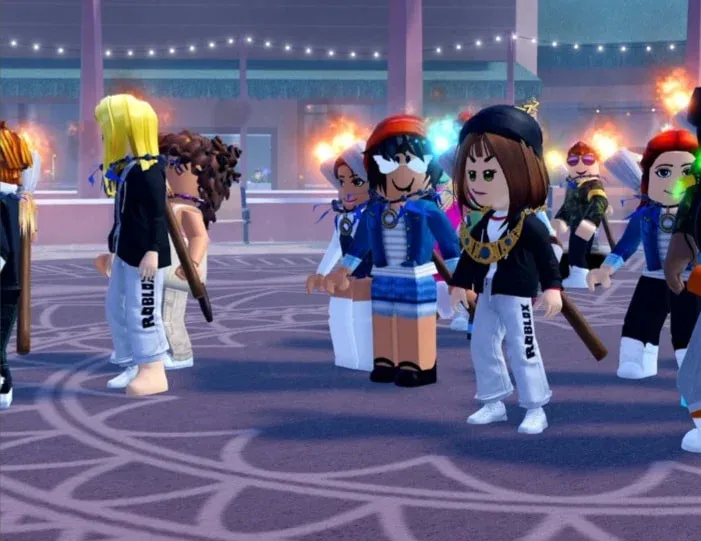
If your avatar simply isn’t responding despite everything looking correct, restart the Roblox app fully rather than just rejoining the experience, since camera initialization sometimes fails silently on first load. Outdated device software or an old Roblox client version can also quietly disable the newer animation toggle without any error message telling you why.
How to Improve Roblox Face Tracking Performance
A few small adjustments make a noticeable difference once the basics are working.
Sit facing a light source rather than with it behind you, since backlighting turns your face into a silhouette the camera can’t read well. Keep your face fully visible, meaning no masks, sunglasses, or hands covering your mouth while testing.
Positioning the camera at eye level rather than below your chin improved tracking accuracy noticeably in my own testing, cutting down on the delayed or jerky animation that low camera angles tend to produce. Reduce background clutter or moving objects behind you too, since busy backgrounds occasionally confuse the tracking algorithm.
Roblox Face Tracking FAQ
How do I turn on face tracking in Roblox?
Open Settings, find the Privacy or Communication section, and enable the camera animation toggle, then grant camera access when prompted.
Does Roblox face tracking work on mobile?
Yes, as long as your device has a working front facing camera and you’ve granted Roblox permission to use it.
Does Roblox face tracking work on PC?
Yes, using either a built in laptop webcam or a standalone USB webcam connected to your computer.
Do I need a camera for Roblox face tracking?
Yes, a functioning front facing or webcam is required since the entire feature depends on reading your real facial movement.
Why is my Roblox avatar not copying my facial expressions?
Check that camera permissions are enabled at both the app and device level, your avatar head supports facial animation, and the experience itself supports the feature.
Can other players see my face tracking?
Yes, in experiences that support it, other players can see your avatar mirroring your expressions and head movement in real time.
Conclusion
The honest takeaway here is that Roblox face tracking works well once your account, avatar, and camera permissions line up, but any single missing piece will make it look completely broken. Start with your account verification and camera permissions before assuming the feature itself is at fault, and you’ll likely have it running within a few minutes.
Recommended Articles
How Do You Jump in Minecraft? Distance, Height & Movement Guide
Roblox Simulators: 7 Best Life Sim and Roleplay Worlds to Try